Jun 18, 2025 • Database Governance • By Amit Jain
Field Management: Merging, Remapping & Hiding Marketo Fields
If you are a Marketo nerd, you know how tricky it can become managing fields in Marketo. This post is a consolidation of my experience in Marketo field management in the past and includes tips and tricks to get over these issues.
Before we deep dive into the merging/remapping of the fields, check out this post to know your Marketo fields.
Field hiding
I have seen several Marketo systems over the years and found that people have lots of unused or one-time used fields. These additional unused fields can become a huge problem for you as these will appear everywhere — for example in smart list filters, when you add fields in the form, data value change action, view etc. And this causes a lot of confusion.
Luckily, Marketo has a functionality to hide the fields. Once you hide the field, it will no longer be visible except in Admin → Field Management. To hide a field, go to Admin → Field management → Search for the field → select Hide field from the field action.
Pre-requisite: To hide a field, you have to first remove all the dependencies of the field from all the assets. There is no automated way to do it; there is no API, you have to do it manually one by one.
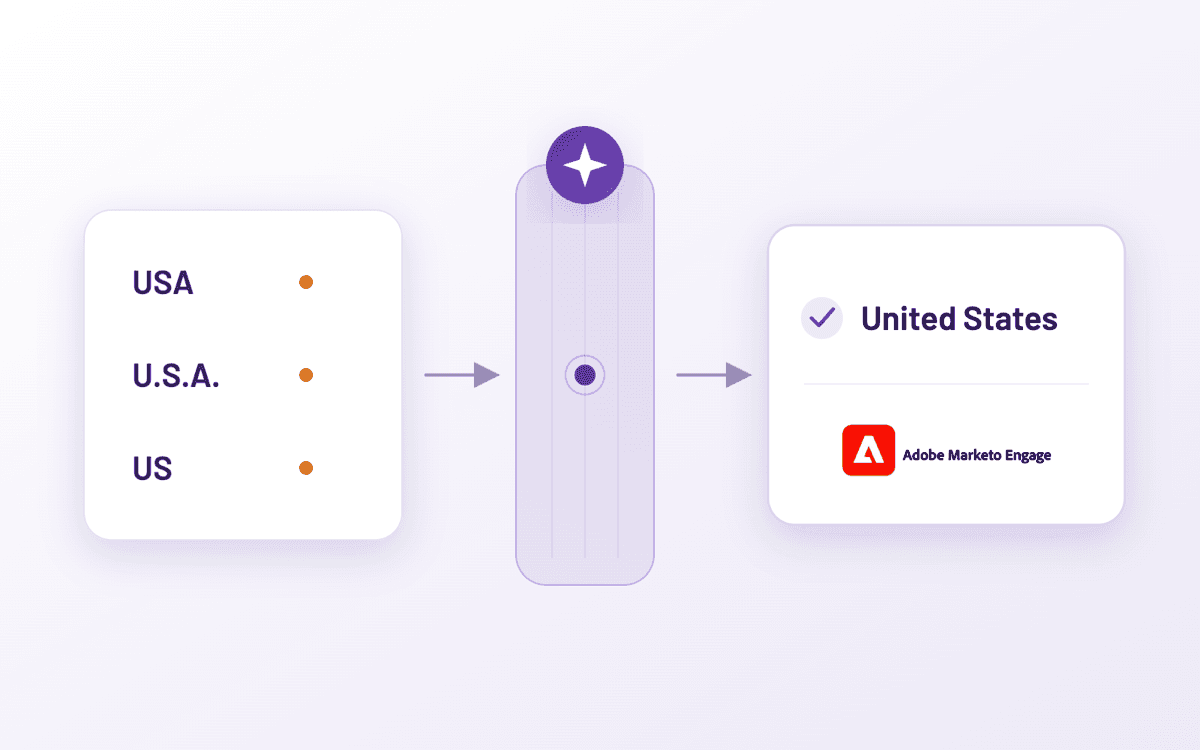
Field Merging
At times, you will find that you have multiple fields for the same data point and the data is scattered over these fields. There could be several reasons why this could happen including:
- You created a field in Marketo first and then added that later in SFDC. Due to the SFDC auto sync, Marketo will create a new field in the database.
- You have a field on the Lead and Contact object with different API names in SFDC. This will also create duplicate fields in Marketo.
- Sometimes fields were created without using best practices and keeping in mind that we have other fields that can be used instead of creating a new one.
With all these reasons, you have two or more fields in the DB and since the data is scattered at multiple places, it is not only impacting your data integrity but also preventing you from creating accurate segments, reports and personalized content.
If you have a similar case, you can ask Marketo support to merge the fields for you. You have to provide the following information to the Marketo support team:
- Names of the fields to be merged.
- Confirm the two merged fields are of the same field type.
- Confirm all the fields to be merged are not being used in any asset.
- Determine which value will win for each merge.
Note: Before you start the merging process, I would suggest taking a backup of the fields you are willing to merge. Just in case anything goes wrong, you can update the data back in Marketo later.
Field Re-mapping
Sometimes, field merging can be tricky. Suppose you have a field in Marketo only and this field has been used in hundreds of assets over time. Now you want this field to be available in SFDC as well.
To make this field available in SFDC, you have to create a new field on the Lead and/or Contact object. As a result of auto sync, this new field will be created in Marketo. Before you ask Marketo support to merge these fields, you have to remove the field from all the assets it is being used in.
Removing the fields from the assets and adding them back looks impossible in such cases. But no worries, there is a solution. You can ask Marketo support to re-map the field with CRM instead of merging. So with this re-mapping your old fields will be in sync with SFDC and the new ones will become orphan. You can hide these orphan fields to avoid any confusion in future.
Pro tip: Before you initiate the re-mapping, take a backup of the fields and upload the data in SFDC after re-mapping.
Why is it important to update the data in SFDC after re-mapping? If you do not update the data in SFDC, in the next sync cycle Marketo will update the data value in the field with a blank value. The reason is that the field is newly created in SFDC and during conflict resolution, SFDC data wins — which is a null value. So to make sure you are not losing any data, you have to update the Marketo data for these fields manually in SFDC (you can do that with the help of data loader to upload a CSV file).